


Joining the CoP Team for the first time
When you are added to your community Team you may see a notification through Teams advising you to accept the invitation, or, you may receive an email direct from MS Teams advising you to 'access your team space'. Please ensure that you do one of these actions.
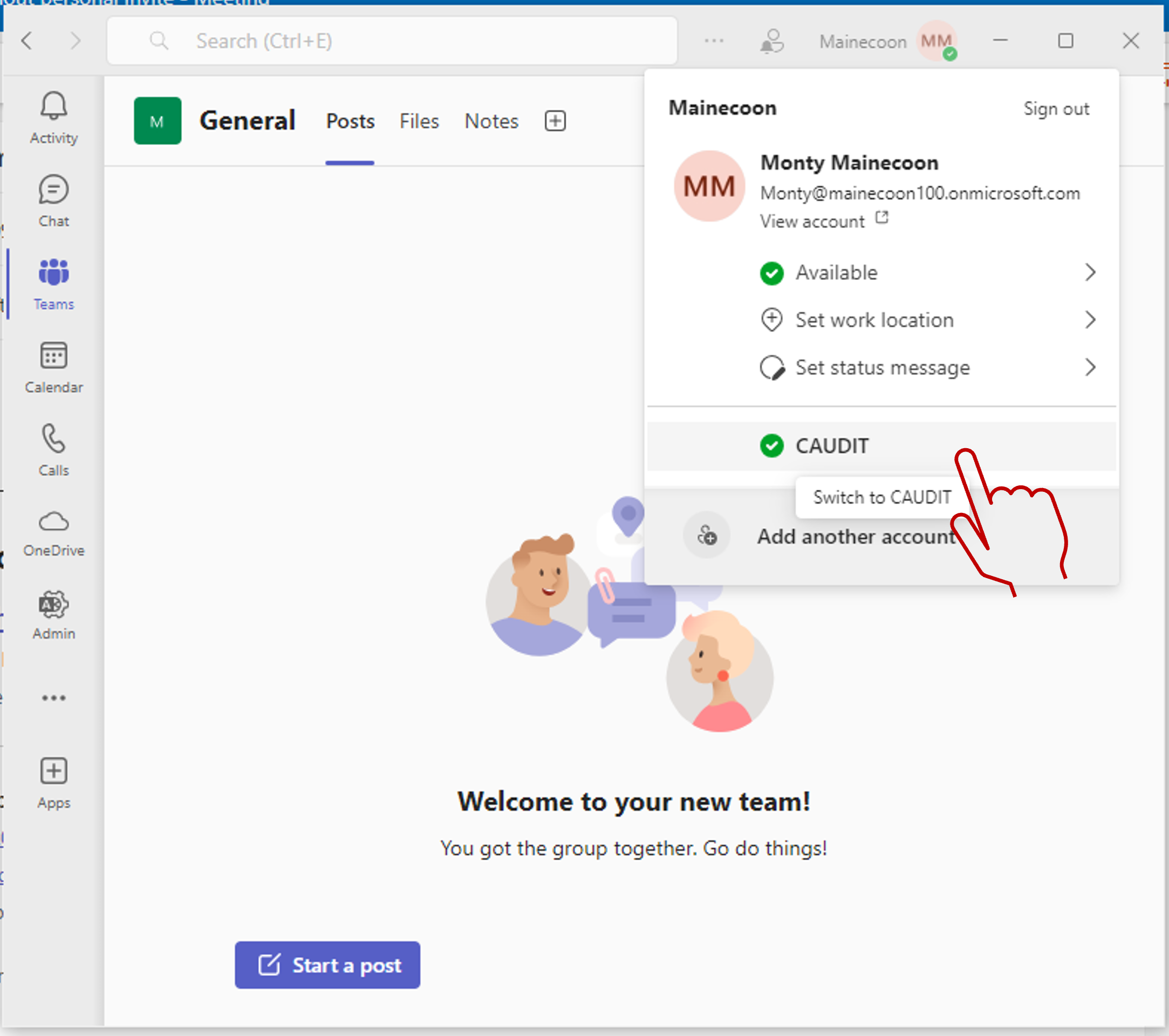
To see the Team listed you will need to change your tenant from your work institution to CAUDIT. You can easily do this by clicking on your profile picture and selecting 'Switch to CAUDIT' (see screen shot below). Now click on the Teams icon on the left hand side and your CoP channels will be visible. You can also open Teams in a browser, login and switch your tenant to 'CAUDIT' and collaborate this way.
Trouble shooting:
Try these actions if you cannot see the Team:
- Close and do a hard restart of MS Teams (to push through any notifications and changes)
- Ensure that you accept the invitation through the email or your notifications
- Change to the CAUDIT tenant (as per the image above) and look for the Team channel
- Ensure that you are logged in using the same email address that you signed up with that is associated to your MS account - eg not an alias.
- Check with a colleague to see if they have experienced any issues joining a CAUDIT Community to ensure that it isn't blocked by your institution account.
Joining a CoP Meeting
CoP meetings are scheduled in the dedicated meeting channel such as '2026 BA CoP Meetings'
Finding the calendar invite: If you have joined a Community after a calendar invite has been issued you can find the next meetings details and .ics file in the dedicated meeting channel set up specifically to host meetings. This will be called '2026 BA CoP Meetings' for example. Scroll through the posts within the dedicated meeting channel until you find the calendar invite. Depending on your settings the older posts may be at the top or the bottom of the page. The 'ics' file will be attached to the scheduled meeting in the Teams channel. Drag or open it to save it to your calendar.
Joining the meeting: Click the Join Meeting button from the calendar invite. Remember to change your tenant (at the top of the popup window) from your work institution to ‘CAUDIT’. See screen shot below:

You can also join by signing in to Teams through your browser and changing your tenant to 'CAUDIT'
Trouble shooting:
- Unfortunately we cannot add users to the meeting invites after they have been issued within the Teams meeting channel, however, you can navigate to the meeting and download the .ics file.
- If you cannot access the chat feature during the meeting, in nearly all cases the issue is because Teams is still recognising you in your work institution tenant. Leave the meeting and rejoin ensuring that you change your tenant as per the image above.
- If you have joined through a browser, sometimes the chat window opens up behind other windows.
Meeting Recordings and Chats, and other CoP Files
Meeting Recordings
Most community meetings are recorded. Depending on your Community the recording may only be available for a specific period of time or available permanently.
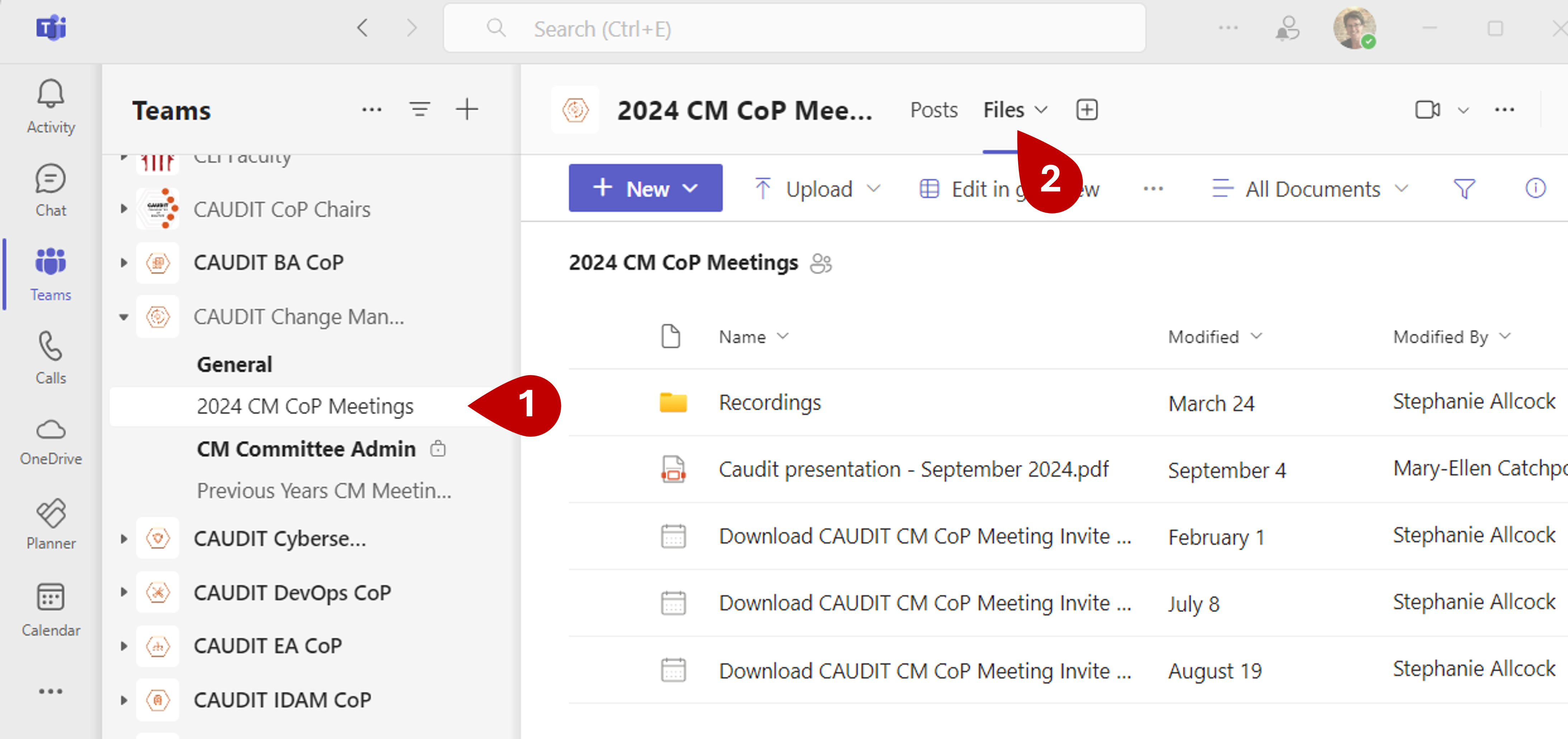
You can find recordings within the Meeting channel under the Files tab (see screenshot below).
Meeting Chat
The Chats from the meeting are captured and able to be viewed by visiting the meeting invite with the CoP meeting channel.
Other Community Files
Some Communities share files. These can be found within the the 'General' or 'themed' channels under the Files tab.


CAUDIT acknowledges the Traditional Owners of the lands where we live, learn and work. We pay our respects to Elders past and present and celebrate the stories, culture and traditions of all First Nations people.